A wifi connection that drops for no apparent reason on a Freebox rarely indicates a serious hardware defect. In most cases, the problem stems from a peripheral element (Freeplug, saturated channel, faulty cable) or a network incident on Free’s side that has nothing to do with the box itself. Identifying the correct layer of the problem before adjusting the settings helps avoid wasting time on false leads.
Freeplugs and wiring: the overlooked cause of Freebox wifi drops
On Freebox installations that use Freeplugs (CPL boxes connecting the Server to the Player), unstable wifi often comes from the CPL, not the box. Freeplugs transmit the network signal through the electrical circuit of the home. Any disturbance on this circuit degrades the connection.
Plugging a Freeplug into a power strip with surge protection or near a power-hungry device (electric heater, microwave, electric car charger) is enough to cause micro-drops. The wifi then seems faulty while it is actually the CPL link between the two boxes that is failing.
Before modifying the wifi settings, there is a concrete protocol to follow to resolve a Freebox wifi issue starting with checking the physical connection chain:
- Plug each Freeplug directly into a wall outlet, without power strips or extensions, and check that the indicator turns solid green after a few minutes
- Resynchronize the Freeplugs by pressing the button on each box for two seconds, then confirm the pairing
- Replace the Ethernet cable between the Freeplug and the Freebox with a new category 5e or higher cable, as a damaged or old cable can limit speed and cause disconnections
- If the Freeplugs are several years old, test without them by connecting the Server and Player with a direct Ethernet cable to confirm or rule out the CPL as the source of the problem

Saturated wifi channel: diagnosis with Freebox Connect
The Freebox wifi emits on two frequency bands: 2.4 GHz and 5 GHz. In apartment buildings, the 2.4 GHz band is often crowded by neighbors’ boxes, connected devices, and Bluetooth devices. When multiple networks share the same channel, interference causes slowdowns and disconnections.
The Freebox Connect app allows you to visualize the wifi coverage of the home and list all connected devices. It is a more reliable starting point than simply restarting the box.
Freebox Connect displays the channel in use and the number of active devices on each band. An old device stuck on 2.4 GHz can drag down the speed of the entire network. Identifying this device and switching it to the 5 GHz band (if compatible) frees up bandwidth for other equipment.
Manually change the channel via Freebox OS
The automatic channel selection mode does not always choose the least crowded one. By connecting to Freebox OS (accessible from a browser at mafreebox.freebox.fr), the “Freebox Settings” section then “Wi-Fi” allows you to force a specific channel.
On the 2.4 GHz band, channels 1, 6, and 11 are the only ones that do not overlap with each other. Testing each one over two or three days provides a realistic picture of the stability achieved. On the 5 GHz band, DFS channels (52 to 140) are less used, but some older devices do not support them.
Free network outage or local problem: how to tell the difference
Since 2023, several massive outages have affected the Free network at the national or regional level, impacting both DSLAM and fiber equipment simultaneously. These incidents on the operator’s side are sometimes confused with personal wifi malfunctions.
Before reconfiguring anything, checking if other Free subscribers in the same area are reporting a problem at the same time helps avoid unnecessary manipulations. Public monitoring platforms aggregate reports from subscribers by region and service type (ADSL, fiber, mobile, TV) in real-time.
Three-step verification
If the wifi drops on all devices in the household at the same time, the problem is likely upstream of the wifi. Here is a quick diagnosis:
- Check the connection status in the Free subscriber area (section “Line Status”) to spot an ADSL synchronization loss or degraded fiber signal
- Consult a Free outage tracking site to confirm or rule out a network incident in the geographical area
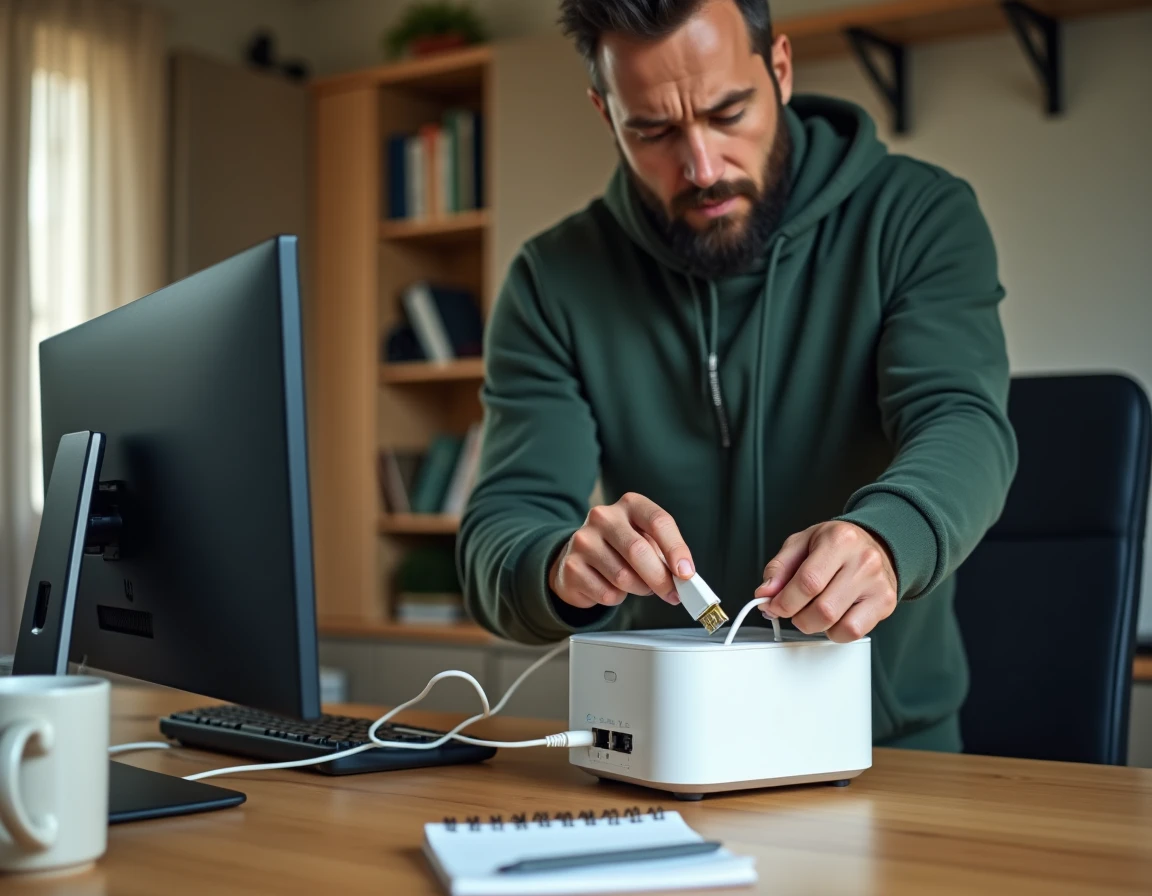
- Test the connection by plugging a computer directly into the Freebox via Ethernet: if the problem persists with a wired connection, wifi is not the cause
Positioning the Freebox and wifi coverage in a large home
The wifi signal loses strength when passing through walls, floors, and metal surfaces. A Freebox placed in a technical closet at the end of a hallway poorly covers a living room located at the opposite end of the home.
Placing the box higher (on a piece of furniture, not on the floor), in a central room, and away from large electrical appliances significantly improves range. For multi-level homes or large areas, a wifi repeater or dedicated mesh system becomes necessary, as no software adjustment compensates for a physical obstacle.
The Freebox emits a signal whose range depends on the model. Recent Freeboxes (Pop, Ultra) offer better coverage than older generations (Revolution, Mini 4K). On an older model, adding an external access point connected via Ethernet remains the most stable solution for covering a large area.
The instinct to restart remains useful, but only after ruling out structural causes: CPL wiring, saturated channel, operator incident. A Freebox wifi that regularly drops deserves a methodical diagnosis rather than a series of restarts without prior analysis.